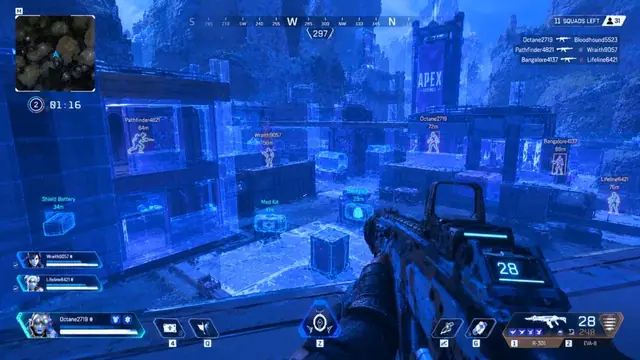
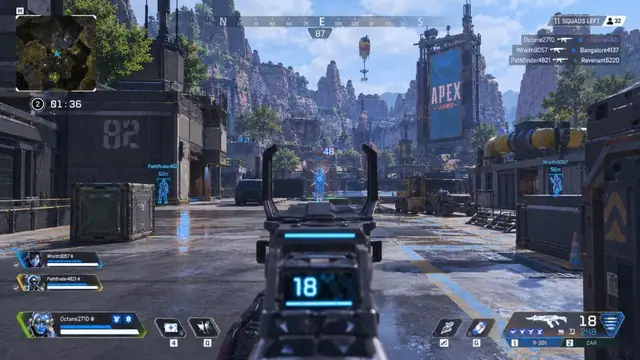
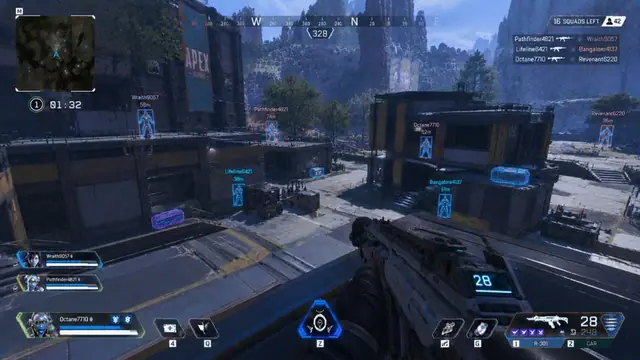
Streaming with overlays on-screen is a capture problem as much as a feature toggle. Use the stream-proof module, then verify with a local recording before you go live.
Checklist before every stream
- Confirm APEX HACK status is Ready
- Enable stream-proof for ESP / wallhack / menu as needed
- In OBS, prefer Game Capture over Display Capture when possible
- Record 60 seconds locally (not a public VOD)
- Watch the file full-screen—pause on fights and menu opens
- Only go live after the recording shows a clean feed
Game capture vs monitor
Display Capture often grabs everything on the monitor, including overlays that game capture might miss or treat differently. Your workflow should pick one method and test that method every time settings change.
What to watch for in the test file
- Boxes or skeletons during peeks
- Menu text when you open the cheat UI
- Snaplines or loot glow in POIs
Vision clutter also increases leak risk—see wallhack vs ESP. First install order lives in setup checklist.
After patches
Treat capture tests like patch-day hygiene. If Apex or OBS updates, re-run the local recording. Status habits are covered in patch day status.
Extra practical notes
Never rely on a single successful stream from last week. Drivers, OBS versions, and game full-screen modes change capture behavior.
If you use multiple PCs (game PC + second PC via capture card), test the card path specifically. Stream-proof on the game PC does not automatically protect a full HDMI tap of the monitor.
Keep a “stream profile” in your cheat config that forces stream-proof on for vision modules even if your ranked profile leaves them visible.
Disable preview projectors that show the same monitor you play on if those projectors bypass your intended capture path.
When in doubt, delay the stream and play offline until you can record a clean minute of real fights—not only the lobby.
Document which OBS scene collection passed the test. Switching scenes mid-night is a common way to accidentally reintroduce Display Capture.
Browser sources and alerts are unrelated to cheat overlays, but layered scenes make it easier to mis-click the wrong capture source—label scenes clearly.
Buy or renew from the pricing section once your capture path is verified so you are not debugging checkout and OBS at the same time.
Take notes while you test stream safe obs settings so you can restore a known-good preset after an Apex update without guessing.
Change one control at a time, play two full games, then decide whether the change helped. Stacking five slider moves in one night makes debugging impossible.
Use the firing range for mechanical checks and pubs for chaos checks. Ranked should inherit only presets that already survived both.
If a setting feels strong in the range but weak in real fights, your issue is usually movement, FOV, or information clutter—not a need for maximum strength.
Keep Windows updated, close unused overlays, and confirm the live status banner before you attribute a bad session to a single module.
When something breaks after a driver update, roll back the last change you made before you wipe the entire config.
Share settings with context: DPI, sens, and which modules were enabled. A bare number without context is not a preset.
Treat support replies as part of your notes. If a fix worked, write the exact steps so you do not re-learn them next season.
Avoid absolute claims about detection or bans. Focus on controllable habits: status checks, calm defaults, and capture tests for creators.
Revisit your presets every few weeks even without a patch. Your own playstyle drifts, and last month’s FOV may no longer match how you peek.
A short cool-down between big config changes prevents tilt-driven decisions. If a night goes badly, stop editing and finish with a known-safe preset.
Bookmark the module pages you actually use so you are not browsing the whole catalog mid-session when you only need one checklist.
If you play on multiple machines, sync notes—not only files. A copied config on different hardware can feel wrong for mundane DPI reasons.
Creators should separate “practice config” and “stream config.” Mixing them is how overlays leak into a VOD you cannot edit fast enough.
End each tuning session by writing one sentence: what improved, what still feels off, and what you will test next. That sentence is worth more than another random slider nudge.
Take notes while you test stream safe obs settings so you can restore a known-good preset after an Apex update without guessing.
Change one control at a time, play two full games, then decide whether the change helped. Stacking five slider moves in one night makes debugging impossible.
Use the firing range for mechanical checks and pubs for chaos checks. Ranked should inherit only presets that already survived both.
If a setting feels strong in the range but weak in real fights, your issue is usually movement, FOV, or information clutter—not a need for maximum strength.
Keep Windows updated, close unused overlays, and confirm the live status banner before you attribute a bad session to a single module.
When something breaks after a driver update, roll back the last change you made before you wipe the entire config.
Share settings with context: DPI, sens, and which modules were enabled. A bare number without context is not a preset.
Treat support replies as part of your notes. If a fix worked, write the exact steps so you do not re-learn them next season.